D365 SCM: Resolving Blocked Work with Hard Cancel & User Locations
Imagine a scenario where a warehouse worker has successfully picked high-value inventory from a storage location, and the items are now physically and systematically sitting at their user location (the virtual 'tote' or 'pallet' associated with their user ID). Suddenly, the system throws an unrecoverable error during the 'Put' operation, or a network glitch leaves the work record stuck in an 'In progress' state that cannot be closed or reversed through the standard mobile device interface. In the past, this often required a high-priority ticket to the IT department for a risky SQL corrective script to manually reset the status of WHSWorkTable and WHSWorkLine.
With the introduction of the 'Hard Cancel' functionality, Microsoft has provided a secure, UI-driven alternative that empowers warehouse administrators to handle these exceptions without database-level intervention. By using the Cancel work periodic task, you can recover inventory from user locations and maintain data integrity across your warehouse management processes (WMS). This post provides an architectural deep dive into how to configure, execute, and automate this recovery process in Dynamics 365 Supply Chain Management.
At a glance
- 🔹 Applies to: Dynamics 365 Supply Chain Management (Warehouse Management module).
- 🔹 Prerequisites: Warehouse management processes (WMS) enabled; user must have System administrator role or administrative privileges.
- 🔹 Effort level: Low (Configuration) to Medium (Process Design).
- 🔹 Outcome: Elimination of SQL-based data fixes for blocked warehouse work and improved inventory accuracy at user locations.

How it works
The core difference between a standard cancellation and a 'Hard Cancel' lies in the validation logic regarding the inventory's current position. A standard cancel, triggered via the Cancel button on the All work list page, typically requires that the work be in an 'Open' status or that the last completed step was a 'Put'. If the inventory is already at the user location (after a 'Pick' but before a 'Put'), the standard cancellation logic often fails because the system expects the inventory to be at a permanent storage location to maintain consistency.
The Hard Cancel functionality, accessed through the Cancel work periodic task (form WHSTroubleshootingSelfService), bypasses these traditional constraints. It is specifically designed to handle 'In progress' work where items are stranded at a user location. When this task is executed, the system terminates the work lines and leaves the inventory at the user's virtual location. This creates a secondary requirement: the inventory must then be moved or adjusted out of the user location to reflect its physical reality, which is why User-location adjustment settings are a critical companion to this feature.
| Feature Attribute | Standard Work Cancellation | Hard Cancel (Periodic Task) |
|---|---|---|
| Menu Path | Warehouse management > Work > All work | Warehouse management > Periodic tasks > Clean up > Cancel work |
| Work Status Required | Open (or last completed line is Put) | In progress / Blocked |
| Inventory Position | Storage Location | User Location / License Plate |
| SQL Alternative | No | Yes (Replaces corrective scripts) |
| User Adjustment | Not required | Mandatory for inventory recovery |
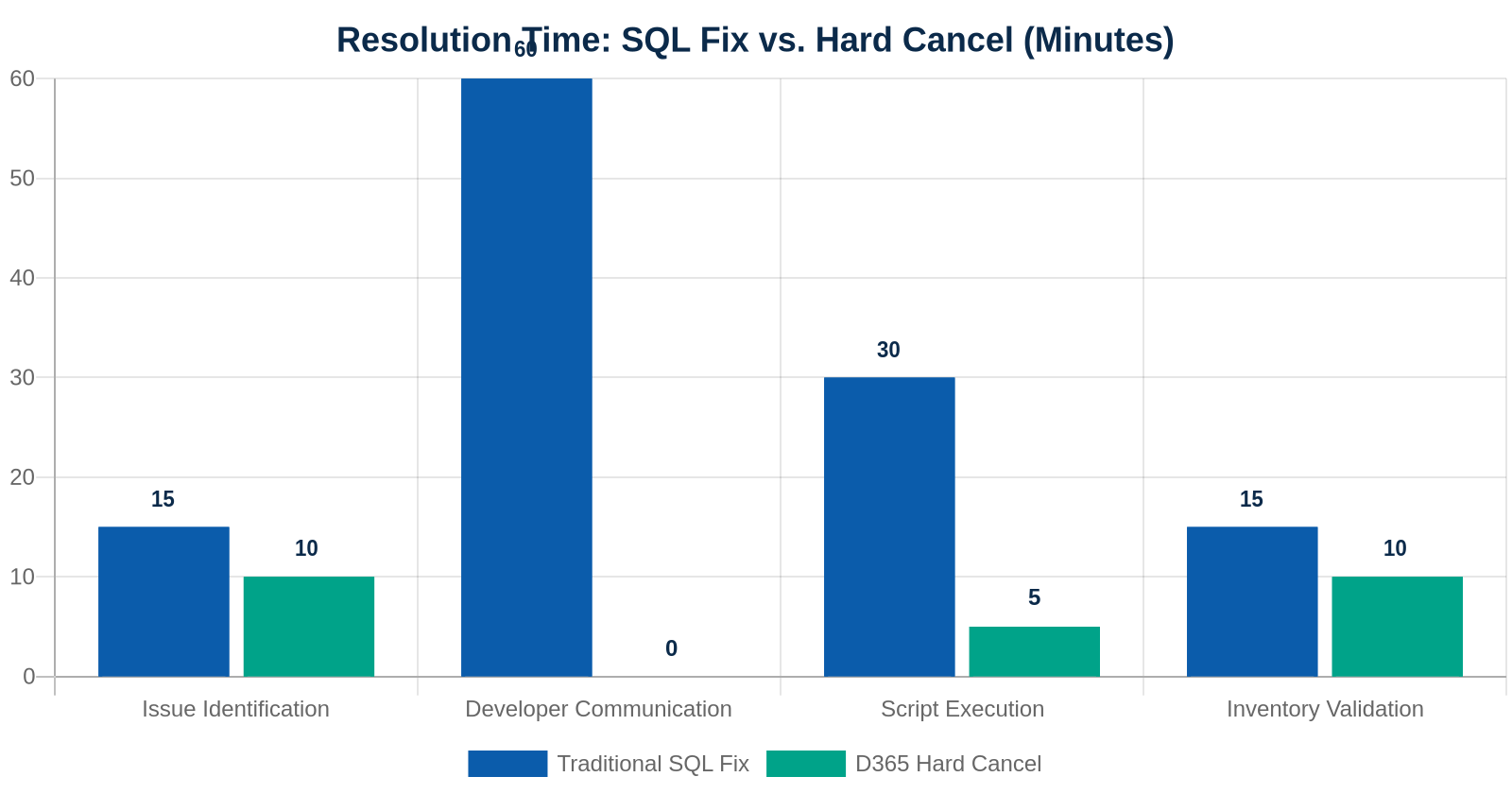
Step-by-step solution
1. Authorizing the Hard Cancel Task
Before any recovery can occur, you must ensure the administrator has access to the specific troubleshooting form. Navigate to System administration > Users > Users and verify that the user has the System administrator role or administrative privileges. The specific menu item is WHSTroubleshootingSelfService, which is located under Warehouse management > Periodic tasks > Clean up > Cancel work. This form is the gateway to clearing blocked work without X++ scripts.
2. Configuring Worker Adjustment Permissions
Since a Hard Cancel leaves inventory at the user location, the worker must have the ability to clear their 'virtual tote'. Navigate to Warehouse management > Setup > Worker. Select the relevant worker and go to the Users FastTab. Here, you must toggle Allow user-location adjustment to Yes. Without this, the inventory will remain 'stuck' on the user's license plate indefinitely, even after the work is canceled.
3. Defining Adjustment Types and Reason Codes
To ensure financial traceability, you must define how the inventory is adjusted out of the user location. Navigate to Warehouse management > Setup > Inventory > Adjustment types. Create a specific type for 'Recovery' or 'Work Exception'. Associate this with an Inventory adjustment journal that posts to a 'Warehouse Clearing' or 'Damaged/Lost' GL account, depending on your business policy for exceptions.
4. Executing the Hard Cancel
When a piece of work is identified as unrecoverable, copy the Work ID. Navigate to Warehouse management > Periodic tasks > Clean up > Cancel work. Paste the ID into the Work ID field and select OK. The system runs the cancellation logic, which updates the WHSWorkTable.WorkStatus to Canceled and unblocks any related transactions, such as the Sales Order or Transfer Order lines.
5. Mobile Device Inventory Recovery
The worker must now clear the inventory from their user location. On the Warehouse Management mobile app, the worker should use a menu item configured for Movement or Adjustment. They will scan their own user-location license plate and use a movement menu item to return the items to a storage location, or use an adjustment out menu item with the adjustment type to remove them if they were damaged.
6. Validating Inventory Visibility
Finally, verify that the inventory is no longer associated with the user. Navigate to Inventory management > Inquiries and reports > On-hand by location. Filter for the Location type of 'User'. Ensure the quantity for the canceled work ID has been reduced to zero. If you use the Inventory Visibility Add-in, ensure the change has synchronized to the microservice to prevent overselling on digital channels.
Worked example
AeroParts Logistics, a distributor of aerospace fasteners, encountered a critical blockage in Warehouse 24. A worker, John Doe, was picking 50 units of high-grade Titanium Bolts (Item TB-500) for Sales Order SO-99821. John completed the pick, and the items were moved to his user-location license plate LP-JD-001. However, during the 'Put' step to the packing station, the mobile device encountered a 'Sequence contains no elements' error due to a corrupted WHSWorkLine record caused by a custom extension conflict.
The work ID WH-00045621 was stuck in In progress. Standard attempts to cancel the work via the All work form resulted in an error: "Work cannot be canceled because it has lines with a status of 'In progress'."
The Solution Architect followed these steps:
- Hard Cancel: The architect navigated to Warehouse management > Periodic tasks > Clean up > Cancel work and processed
WH-00045621. The work status immediately changed to Canceled. - Inventory Check: On-hand inventory showed 50 units of
TB-500still sitting at locationUSER-JD. - Adjustment: John Doe used his mobile device, navigated to Inventory > Movement, scanned location
USER-JD, and moved the 50 units back to the bulk storage locationBULK-01-A.
By using this method, AeroParts avoided the downtime typically required for a developer to write and test a SQL corrective script. The sales order line was released again, a new work ID was generated, and the shipment was fulfilled the same afternoon.
Automation and AI opportunities
While the Hard Cancel is a manual administrative task, it can be extended using the Power Platform. You can configure a Business Event for "Work Blocked" (though this often requires a custom business event trigger in X++ when a WHSWorkTable update fails). This event can trigger a Power Automate flow that notifies the Warehouse Manager via Microsoft Teams, providing a direct link to the Cancel work form.
Furthermore, by exporting WHSWorkTable history to Dataverse and using Power BI, you can identify patterns—such as specific items or locations that frequently cause work blockages—allowing for proactive maintenance of location directives or work templates. If you are using the Inventory Visibility Add-in, you can use its REST API to trigger a soft-reservation release immediately after a Hard Cancel is detected, ensuring that your omnichannel 'Available to Promise' (ATP) numbers remain accurate even during operational exceptions.
SysOperationServiceController framework to wrap the cancel work logic if you need to perform bulk cancellations via a custom Power App or an external integration.Common pitfalls and troubleshooting
- Symptom: The 'Cancel work' task finishes but inventory is still reserved.
Cause: The inventory is still tied to the user-location license plate. Fix: Ensure the worker performs a manual adjustment or a 'Movement' to a storage location to release the physical reservation. - Symptom: Error "User is not authorized to perform adjustments" on the mobile device.
Cause: The Allow user-location adjustment toggle is set to No on the Worker record. Fix: Enable the setting in Warehouse management > Setup > Worker. - Symptom: Hard Cancel is unavailable for a specific Work ID.
Cause: The work might be part of a Cluster or a Container that is currently 'In use'. Fix: Break the cluster or close the container before attempting the Hard Cancel. - Symptom: Financial discrepancies after adjustment.
Cause: The Adjustment type used does not point to the correct GL account. Fix: Review the Inventory posting profiles for the 'Inventory adjustment' transaction type. - Symptom: Cannot find the 'Cancel work' menu item.
Cause: The user lacks administrative permissions for the troubleshooting form. Fix: Verify that the user is assigned the System administrator role or has security privileges for the Cancel work form.

Best-practice checklist
- ✅ Assign the Warehouse Manager role only to trusted personnel who understand the financial impact of inventory adjustments.
- ✅ Always verify the Work Status in
WHSWorkTablebefore and after the Hard Cancel operation. - ✅ Configure a dedicated Inventory Adjustment Journal specifically for warehouse exceptions to isolate these entries in the General Ledger.
- ✅ Train workers on how to identify 'stuck' work and how to report their user-location license plate ID to supervisors.
- ✅ Periodically review the WHSWorkTable for high volumes of canceled work to identify underlying configuration issues in Location Directives.
- ✅ Ensure License Plate Tracking is enabled for any location used during the recovery process.
- ✅ Use Reason Codes for all adjustments out of user locations to provide an audit trail for the Hard Cancel.
FAQ
Can I use Hard Cancel for work that has already been 'Put' to a final shipping location?
No. Once the 'Put' operation is completed to a final location (like 'Baydoor'), the work is typically closed. At that point, you should use the Reduce picked quantity or Reverse shipment functionality instead of a Hard Cancel.
Does Hard Cancel affect the status of the underlying Sales Order?
Yes. Canceling the work will revert the Sales Order line or Transfer Order line back to a 'Released' or 'Open' state, depending on whether other work exists. This allows you to re-release the order to the warehouse to generate fresh work.
What happens if I Hard Cancel work that is part of a Load?
The work is removed from the Load, but the Load itself remains. You may need to manually refresh the Load or delete it if it is no longer valid. The inventory previously 'stuck' must still be adjusted out of the user location to be available for a new Load.
Key takeaways
- 🎯 Hard Cancel is a powerful administrative tool for clearing 'In progress' warehouse work that cannot be handled via the standard UI.
- 🎯 The process leaves inventory at the User Location, necessitating a secondary Adjustment step to maintain stock accuracy.
- 🎯 Configuration of Worker adjustment permissions and Adjustment types is mandatory for a successful recovery workflow.
- 🎯 This feature significantly reduces the need for SQL corrective scripts, lowering the risk of database corruption and reducing IT overhead.
Further reading
- Cancel warehouse work for exception handling - Supply Chain Management
- Inventory Visibility Add-in overview - Supply Chain Management
- Agents, Copilot, and AI capabilities in Dynamics 365 apps
- Warehouse management overview - Supply Chain Management
Note: written with AI assistance and reviewed by Gaurav Jadaun. Always validate in a sandbox environment before applying to production.


Comments
Post a Comment